
01
Download and open the installer
Choose the download button above. When it finishes, open the installer from your browser’s Downloads list and confirm the Windows prompt if one appears.
Jontel International · Windows installer
Download the installer and follow its on-screen guide to load NTSA Downgrade or Upgrade DL in your supported browser.
Download Windows installerWhen the download finishes, open the installer from your browser’s Downloads list and approve Windows’ confirmation if shown. Websites cannot automatically run downloaded programs.
A simple guided setup
The installer opens each browser’s Extensions settings in turn and keeps its guide beside the browser when your screen has room.
Choose the download button above. When it finishes, open the installer from your browser’s Downloads list and confirm the Windows prompt if one appears.
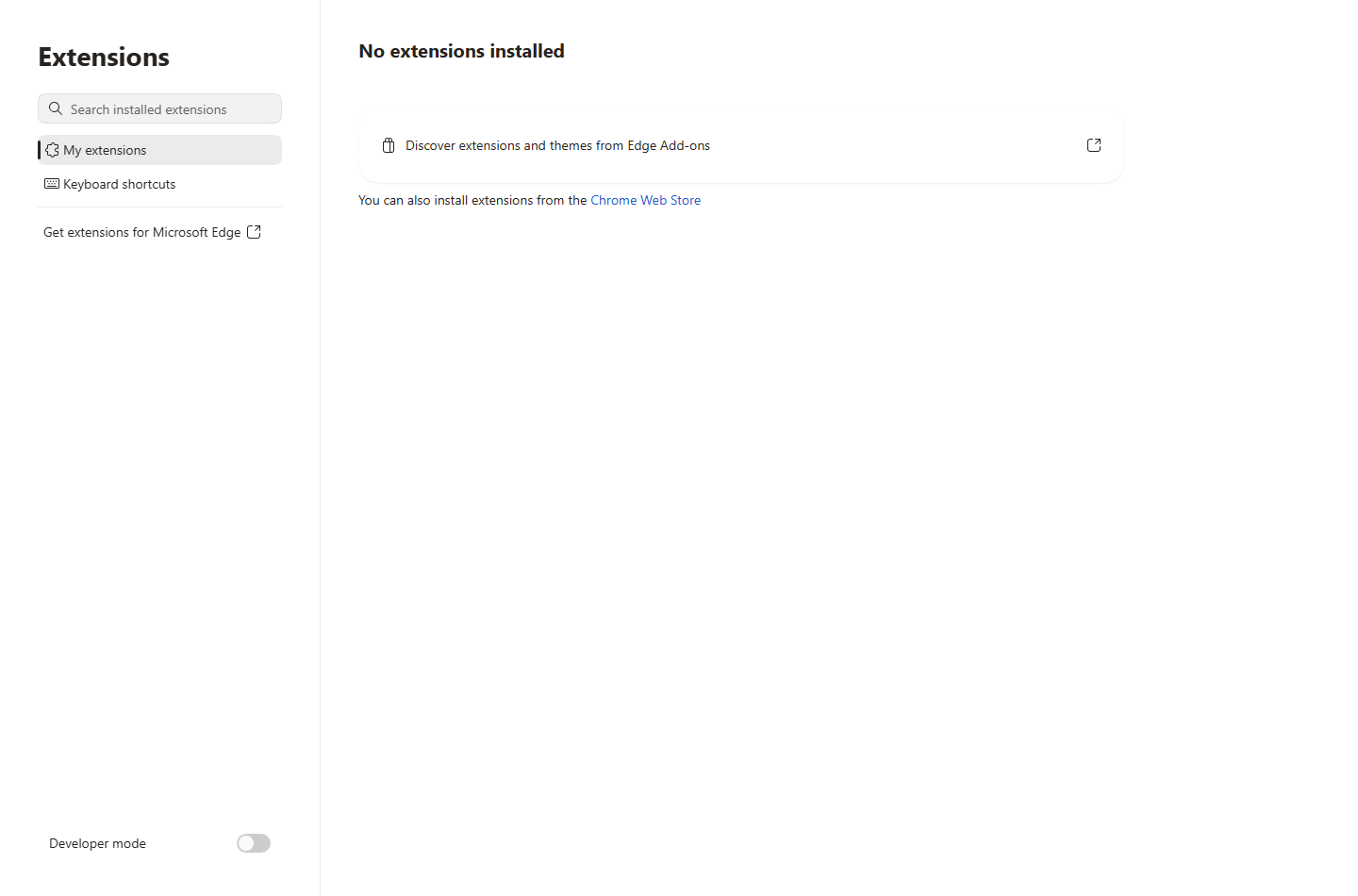
Actual Microsoft Edge screen · select the image to enlarge
Use the Extensions page that the installer opened in your selected browser. The browser’s own Extensions screen is shown above.
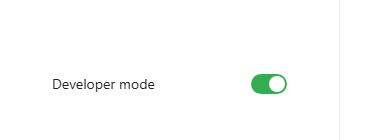
Actual browser setting · Developer mode enabled
Switch on Developer mode in the Extensions settings. This reveals the browser’s tools for loading unpacked extensions.

Actual browser controls · select Load unpacked
Select Load unpacked, then choose the folder shown in the installer. Confirm that the extension appears, then continue to the next selected browser.
Download the Windows installer, then open it from your Downloads list when the download completes.